
MacOS
Bouquetier – channel list editor for the Mac
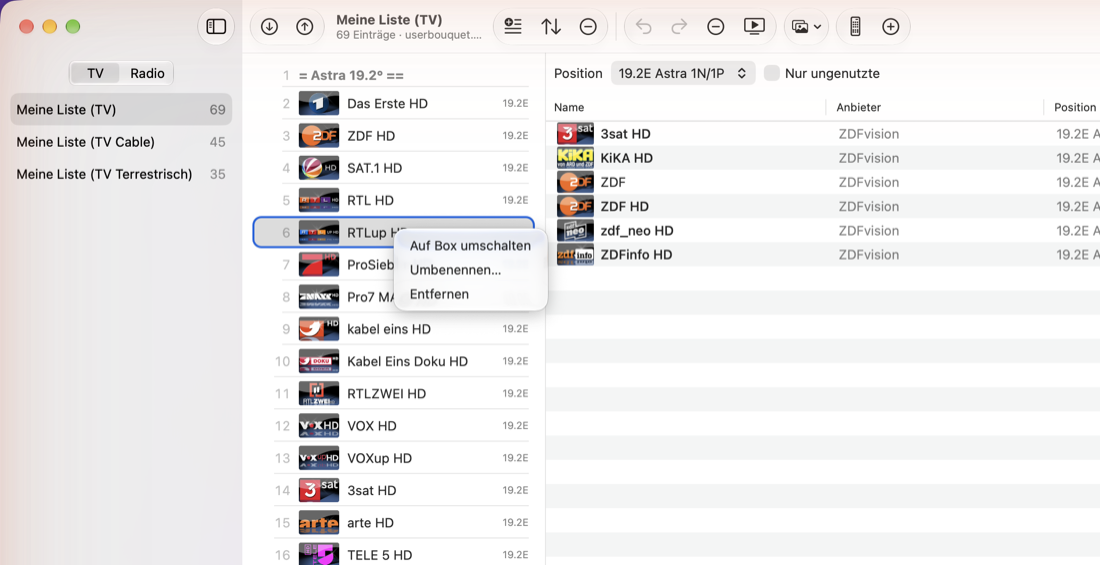
Bouquetier is a native Mac app for editing the channel lists and bouquets of Enigma2 receivers (Dreambox, VU+ and others). It is an independent program modelled on the features of dreamboxEDIT but written specifically for macOS. It has nothing to do with Wine, CrossOver or a virtual machine.
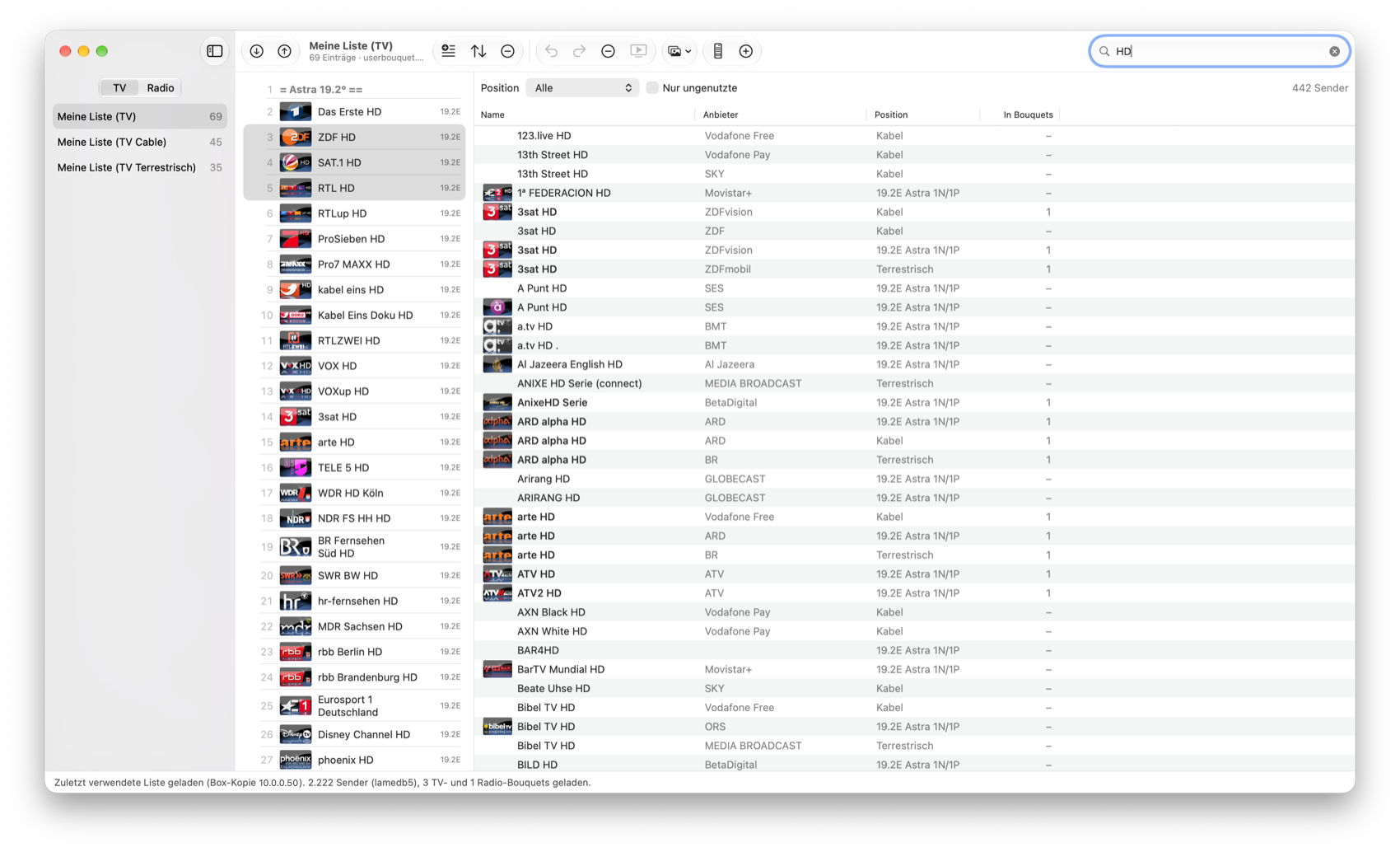
What Bouquetier can do
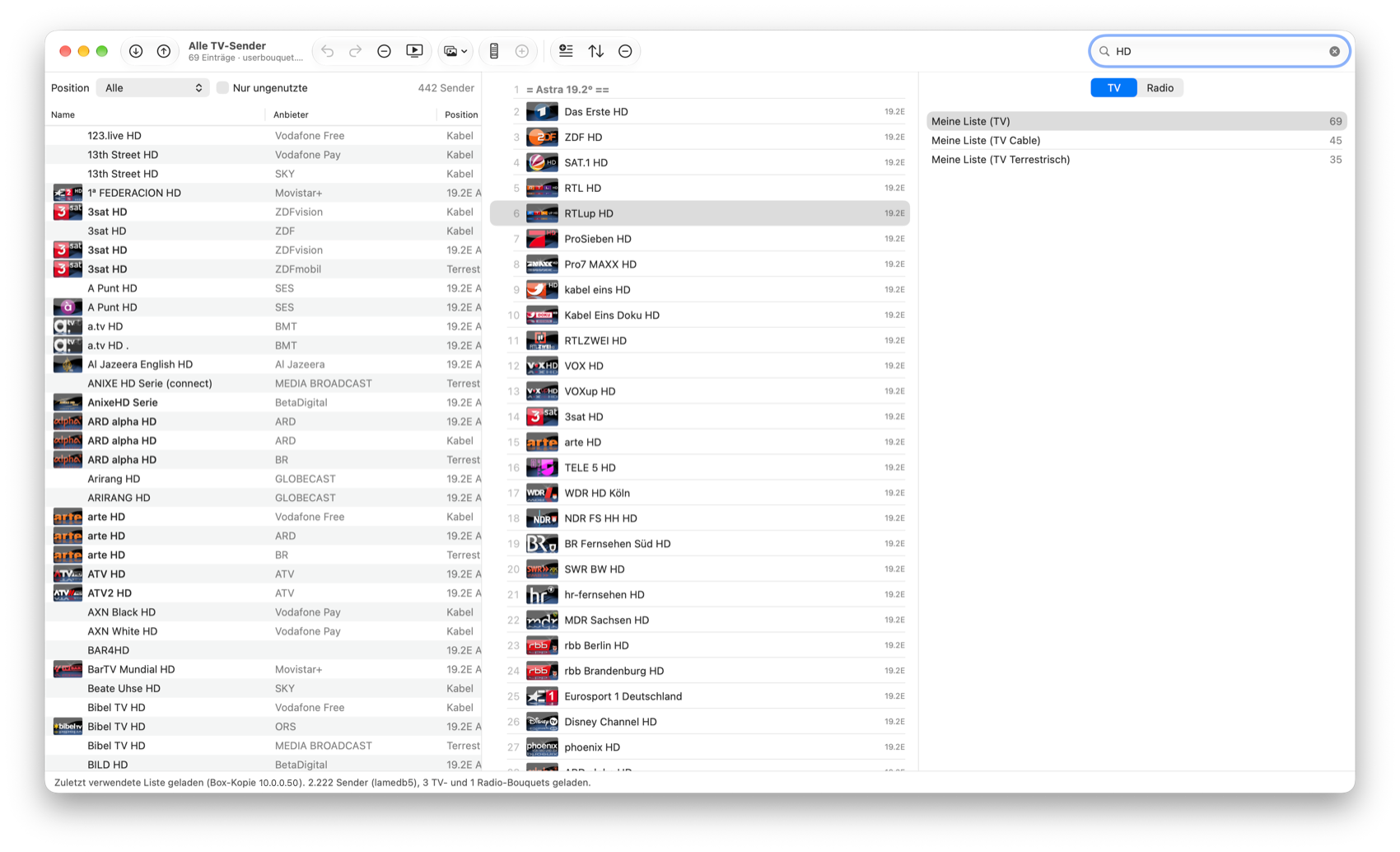
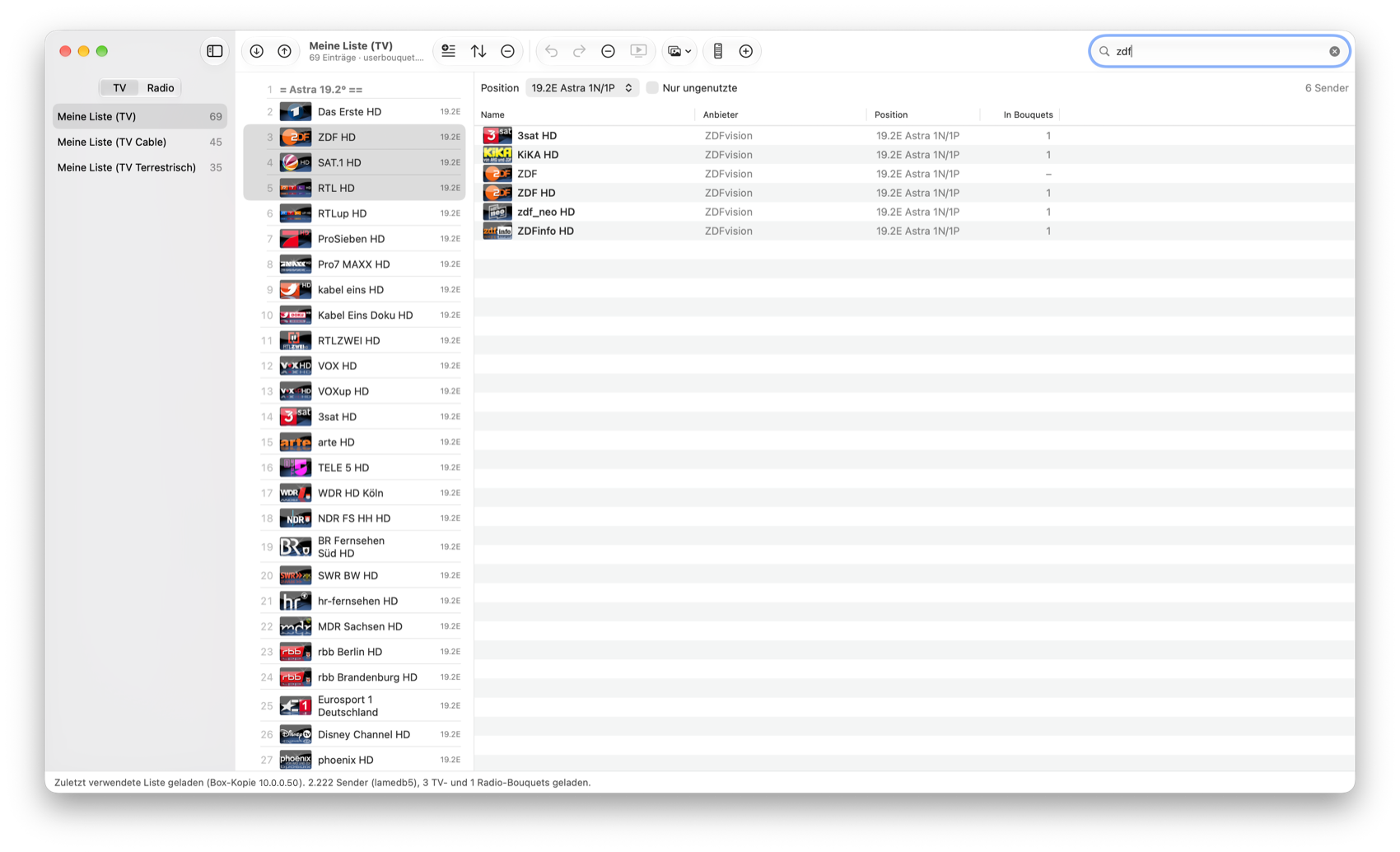
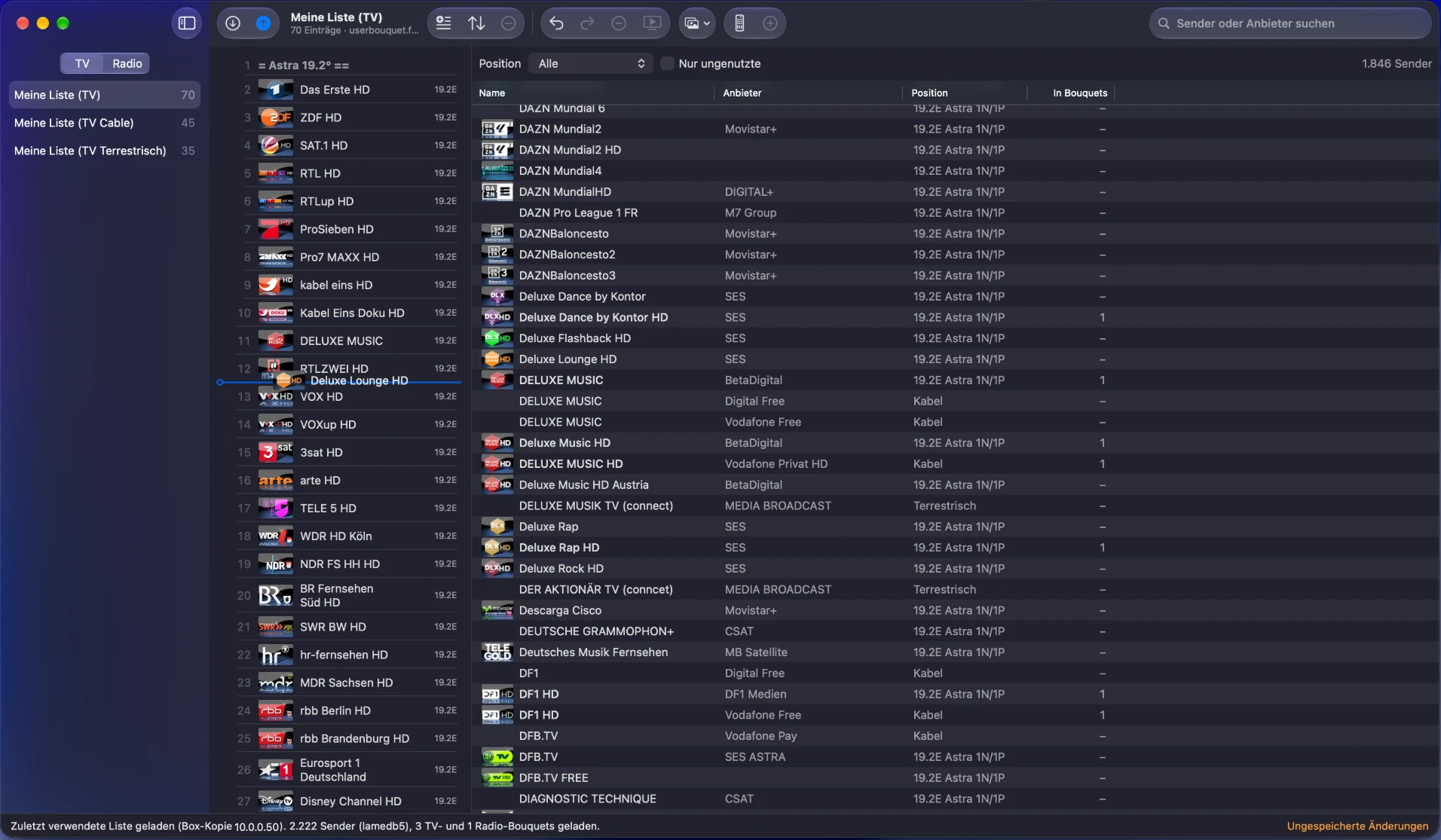
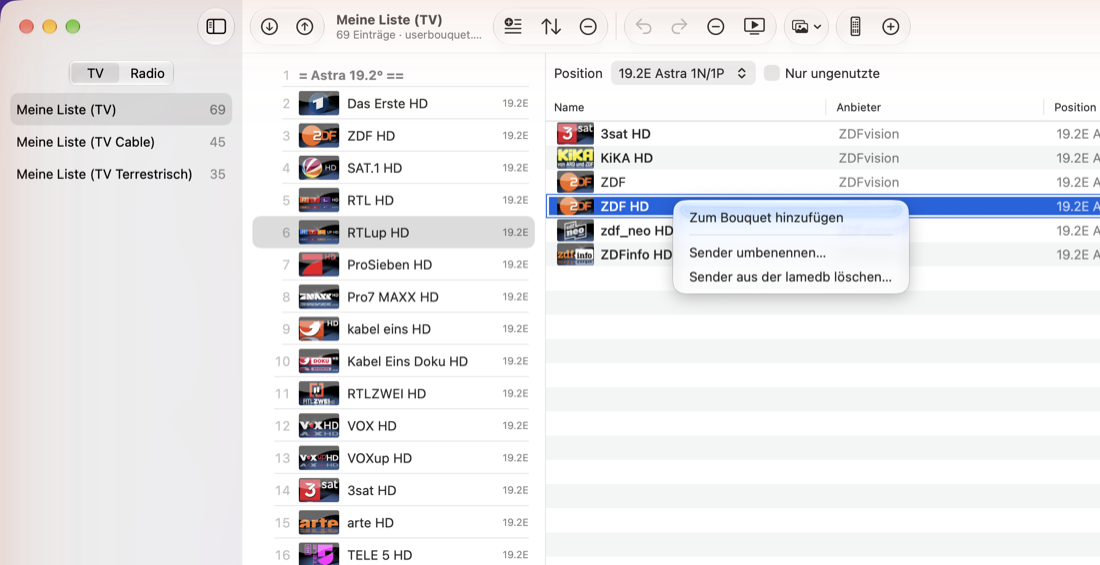
- Edit bouquets: create, rename, delete, sort; insert and reorder channels by drag & drop, markers, alphabetical sorting, undo and redo
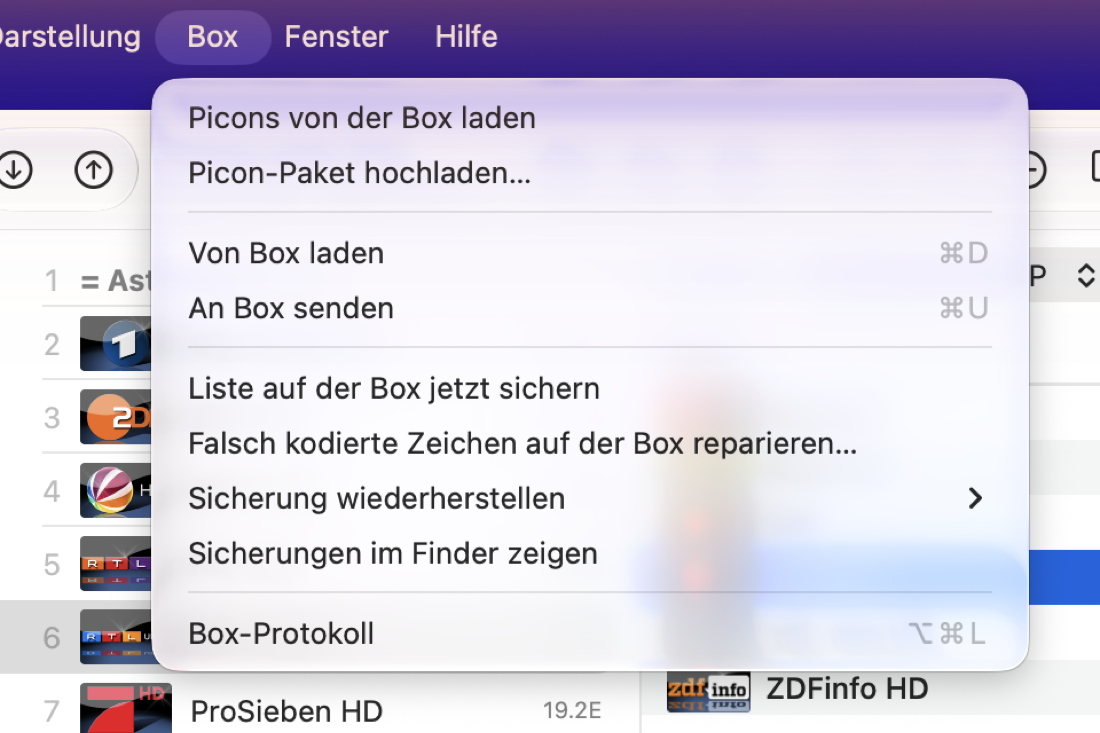
- Channel list (lamedb/lamedb5): rename and delete channels, remove unused channels, repair wrongly encoded characters (“19.2°E”), satellite names from satellites.xml
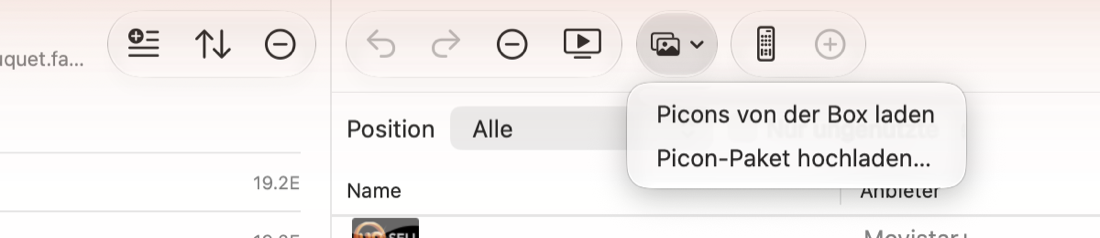
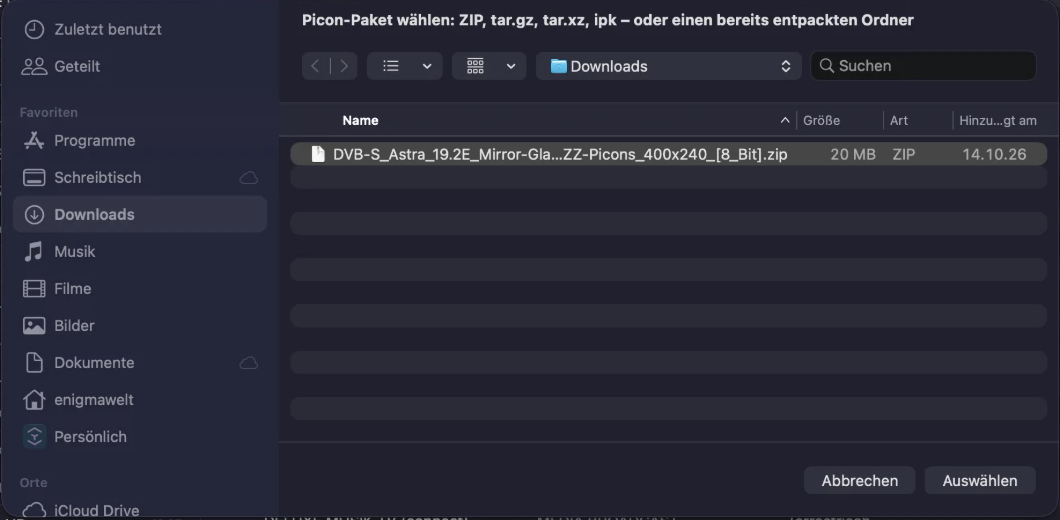
- Picons: load and display logos from the box, upload picon packages (ZIP, tar.gz/xz/bz2, ipk, folders) to the box
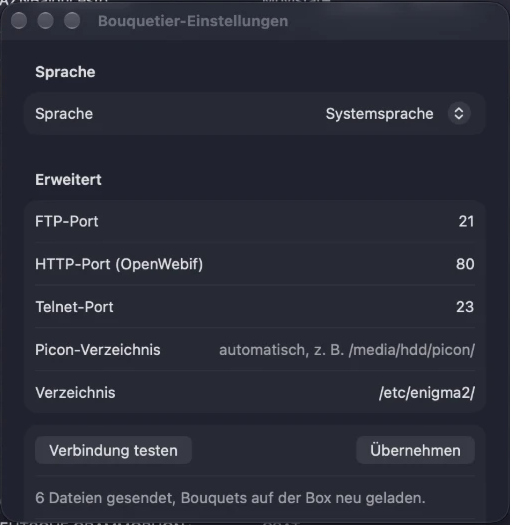
- Load and send: fetch the lists from the box via FTP and send them back; the box then reloads them through OpenWebif. Before every send the app makes a backup automatically; restore it from the “Box” menu
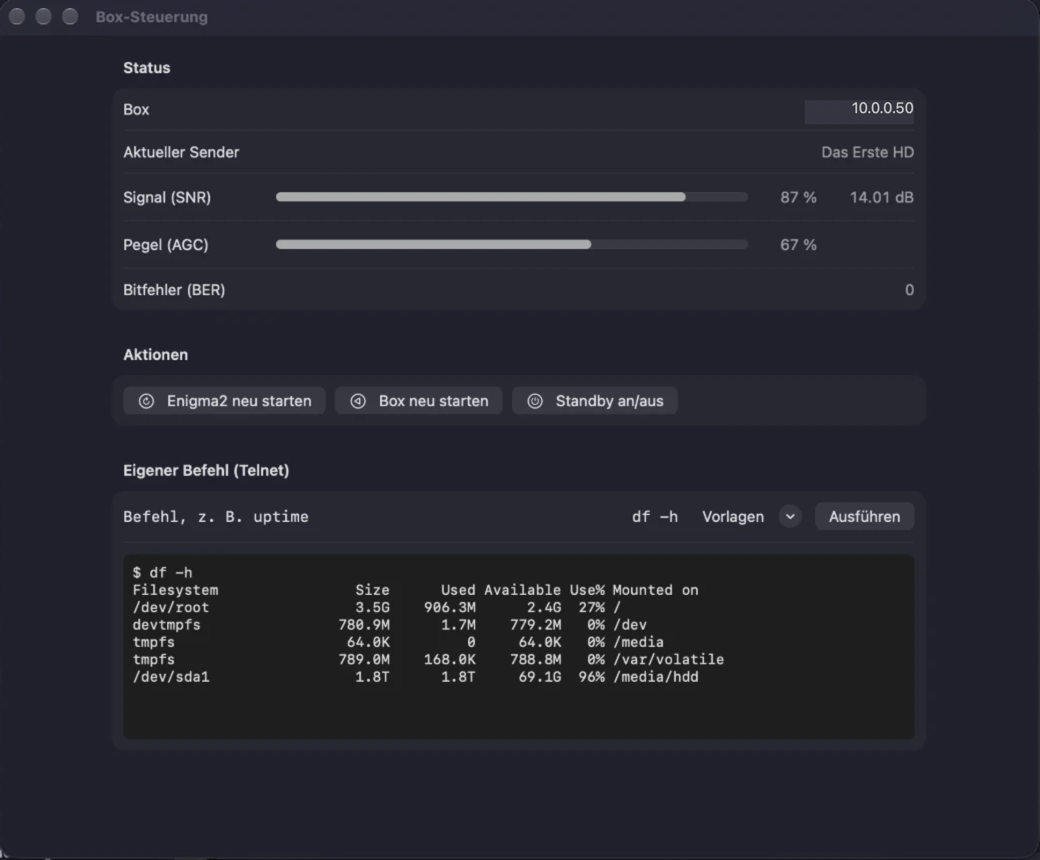
- Box control: current channel with signal strength, switch channel with the space bar, Enigma2 restart, box restart, standby, your own Telnet commands
- Box log for troubleshooting (contains no passwords)
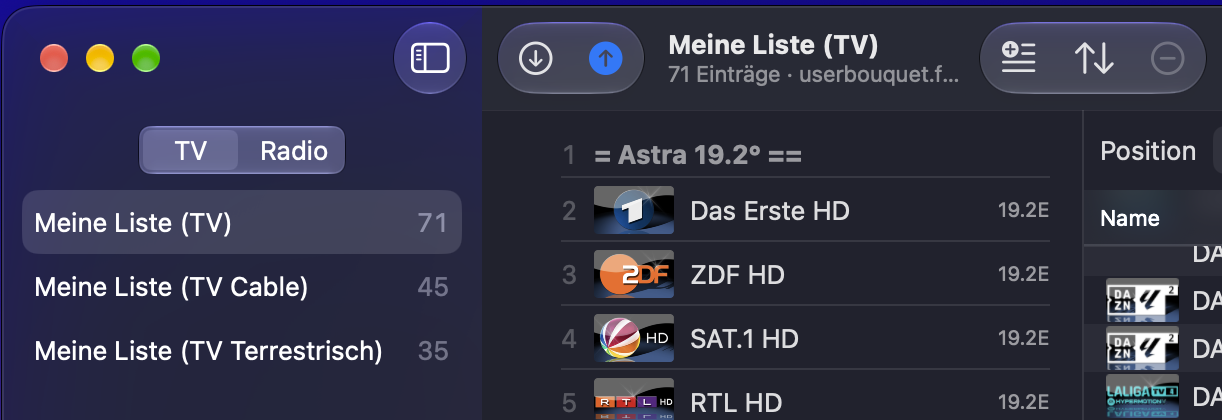
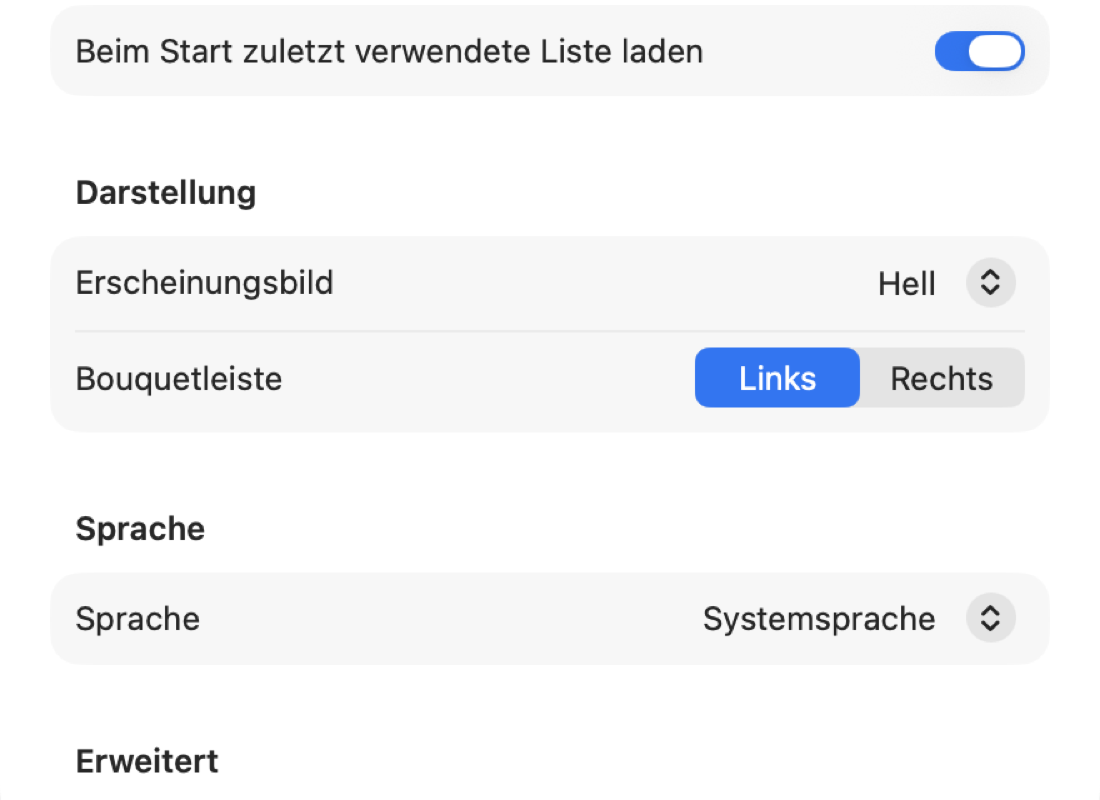
- Comfort: light, dark or automatic, bouquet bar on the left or right, customizable toolbar, remembered column widths
- Languages: German, English, French, Spanish
The password of the box is stored in the macOS keychain. The app sends no data to the internet; it only talks to your box on your own network.
Requirements
- Mac with Apple silicon (M1 or newer) or an Intel processor
- macOS 13 Ventura or newer
- Enigma2 receiver reachable on your home network (FTP and OpenWebif enabled)
Download
Bouquetier 0.2.3 for macOS (ZIP)
Unzip the file (double-click) and drag Bouquetier to your Applications folder. On first launch macOS shows a warning, see the next section.
Installation: why the warning, and how to open the app anyway
Bouquetier is not signed by Apple and not notarized. Both require a paid Apple developer account, which does not make sense for a private project. macOS (its protection feature “Gatekeeper”) therefore blocks the first launch with a message such as “Bouquetier can’t be opened because Apple cannot check it for malicious software.”
This happens with every app that Apple has not approved. It says nothing about whether the app is good or bad. You have to approve the app yourself, once. After that it starts like any other app.
Use the way that matches your macOS version. You can check it under → “About This Mac”.
macOS 15 Sequoia and newer
- Double-click Bouquetier in your Applications folder. The warning appears. Click Done (not “Move to Trash”).
- Open → System Settings → Privacy & Security.
- Scroll down to the Security section. It says “Bouquetier” was blocked to protect your Mac. Click Open Anyway.
- Confirm with your login password or Touch ID and click Open Anyway again in the next window.
The entry is only shown for about an hour after the first launch attempt. If it is gone, try to open the app again.
macOS 13 Ventura and macOS 14 Sonoma
- Open the Applications folder in the Finder.
- Control-click (or right-click) Bouquetier and choose Open.
- In the warning window click Open.
If there is no “Open” button, proceed as for macOS 15 (System Settings → Privacy & Security → Open Anyway).
Alternative for advanced users: Terminal
The warning appears because your browser marked the downloaded file with a “quarantine” flag. You can remove that flag. Open the Terminal app and enter:
xattr -dr com.apple.quarantine /Applications/Bouquetier.appThe app then starts without a warning. The command does not change the app itself, it only removes this flag.
More notes for the first launch
- Local network: macOS asks whether Bouquetier may access devices on your local network. Answer Allow, otherwise the app cannot find your box. To change it later: System Settings → Privacy & Security → Local Network.
- Keychain: When the password of the box is saved, macOS asks for permission. Choose Always Allow and it will not ask again.
- After an update the warning may appear again. Repeat the approval then.
Is this safe?
Approving means you trust the publisher. Only download Bouquetier from this website.
Help and feedback
Please report bugs, wishes or questions about Bouquetier through the contact form. The file Box.log helps (in the app: Box → Box log → “Show in Finder”). It contains no passwords.
Other options for the Mac
If you want to use the Windows program dreamboxEDIT itself on the Mac:
- dreamboxEDIT can be run on macOS with Wine or CrossOver. A package made with Winebottler as in the past has not been possible since macOS Catalina (10.15). I show how easy CrossOver is in this video (German, no subtitles): dreamboxEDIT und MacOS
- Jörg Bleyel offers the app “E2Remote für Mac” in the Apple App Store, a very good alternative.